Our Portal Features
- View and pay your outstanding invoices online — anytime
- Track current repairs in real time and message your mechanic directly
- Access the full service history for every truck we've worked on
Follow the guide below for complete instructions!
1. Account Sign-in
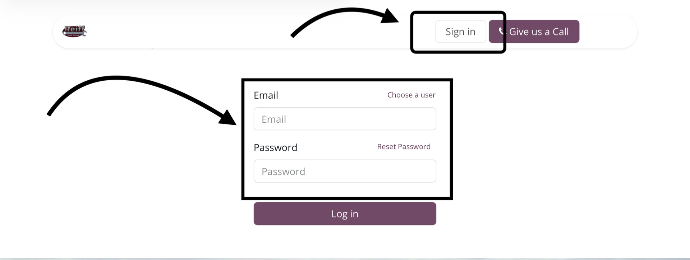
Click on the sign in button or click here to sign in. Don't have an account yet? Contact us and ask for access. If you received an invite email, just use the link in that email to set up your account! Enter the correct account information to Log in.
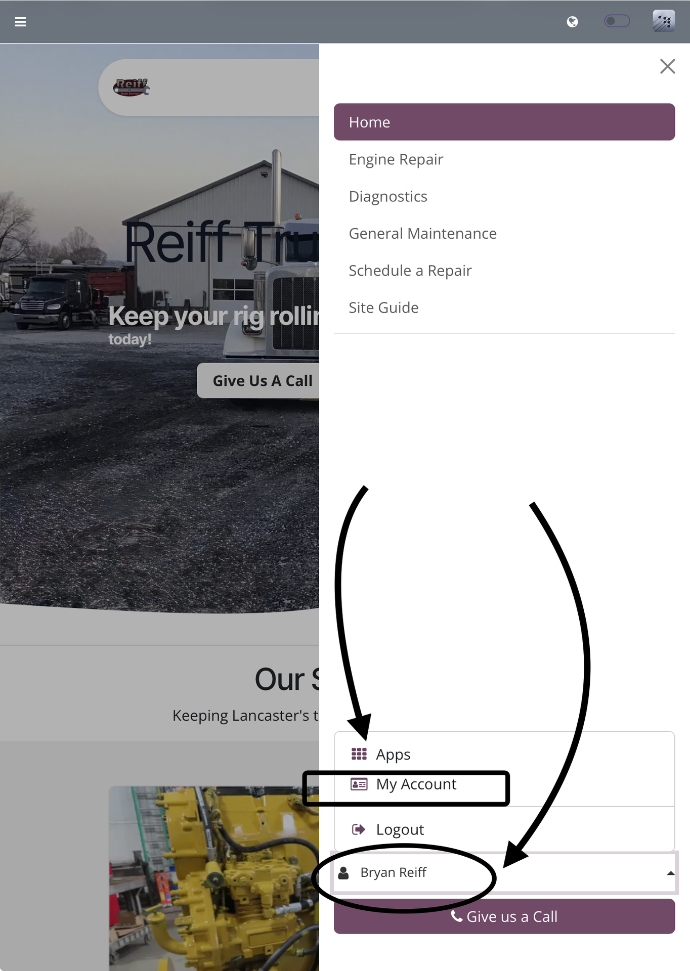
Then access the portal features by clicking on your account name dropdown and then clicking on my account.
2. Pay Your Invoices
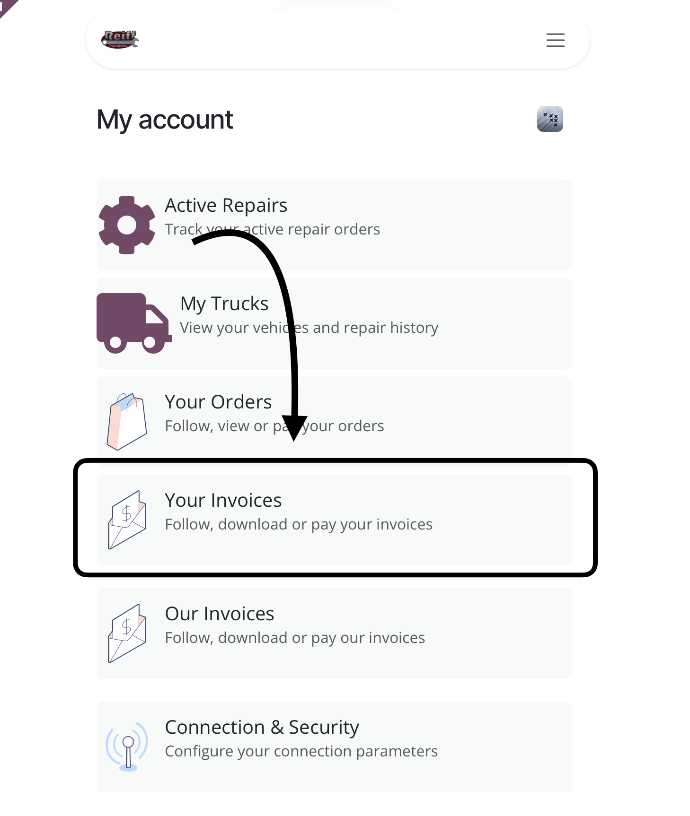
To view your invoices, click on the "Your Invoices" box
Once you're in, you'll see a list of all your invoices. Unpaid invoices will have a clear "Pay Now" button, and anything already paid will be marked as paid.
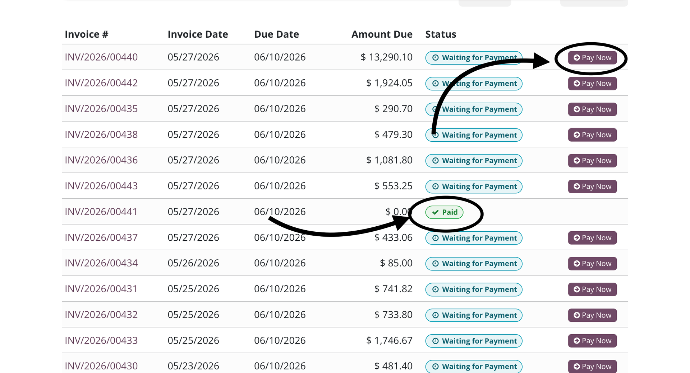
To pay an invoice, either click the "Pay Now" button directly, or open the invoice by clicking its invoice number and then selecting "Pay Now." From there, just follow the prompts to complete payment. Note: credit card payments include a 3% fee, while ACH payments have no fee. Once you enter your payment information it will be saved for the next time!
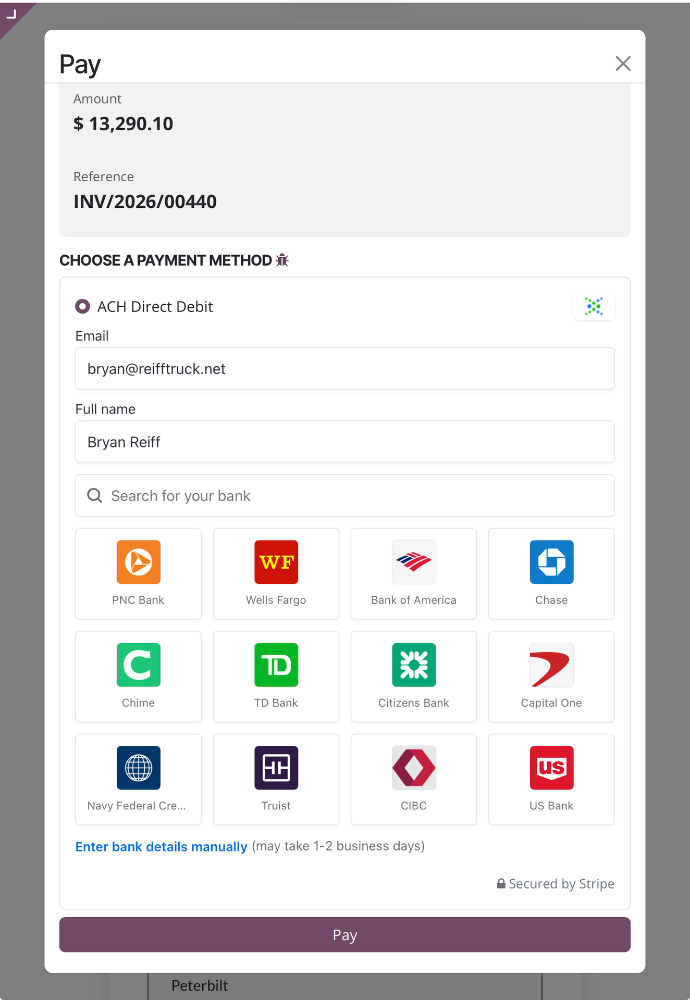
3. View Active Repairs
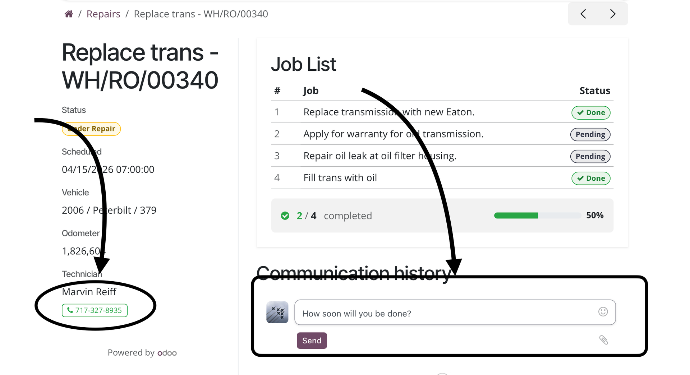
You also have the option to view all your active repairs. For each one, you can see how many jobs we've completed and message or call the mechanic directly. To get started, just select "Active Repairs."
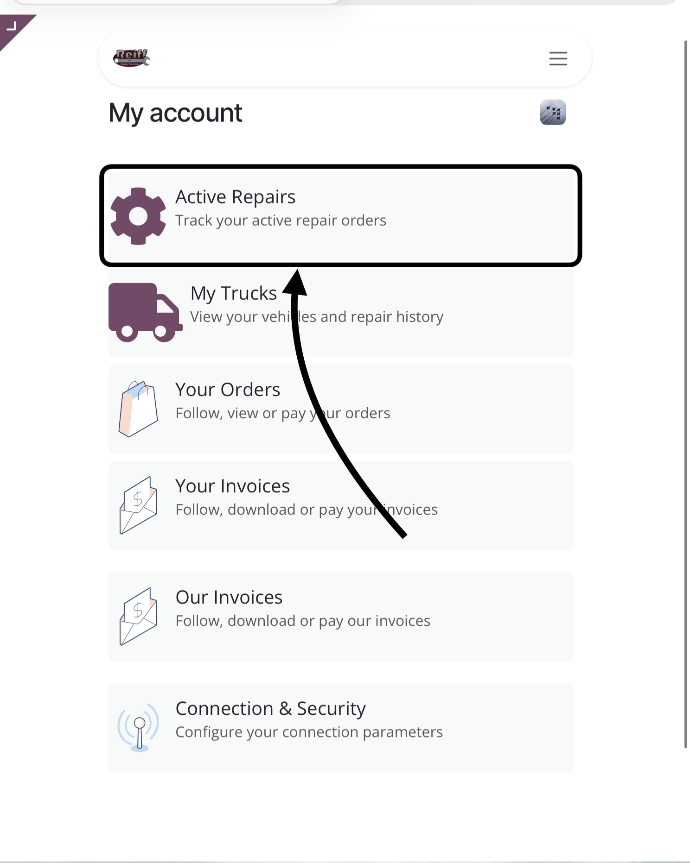
Next, you'll see a list of all your active repairs — just select the one you'd like to view. Once it's open, you can see all the jobs assigned to that repair, along with whether each one is completed or still in progress. A repair status meter is visible, indicating the progress of the work.
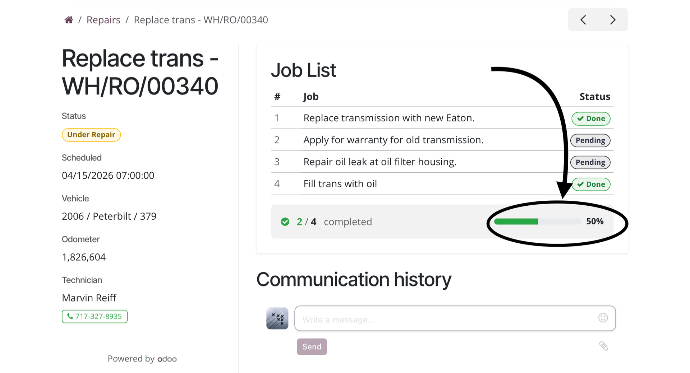
You can also communicate directly to the technician performing the job, by sending him a message, or by calling him directly from the portal.
4. Fleet & Repair History
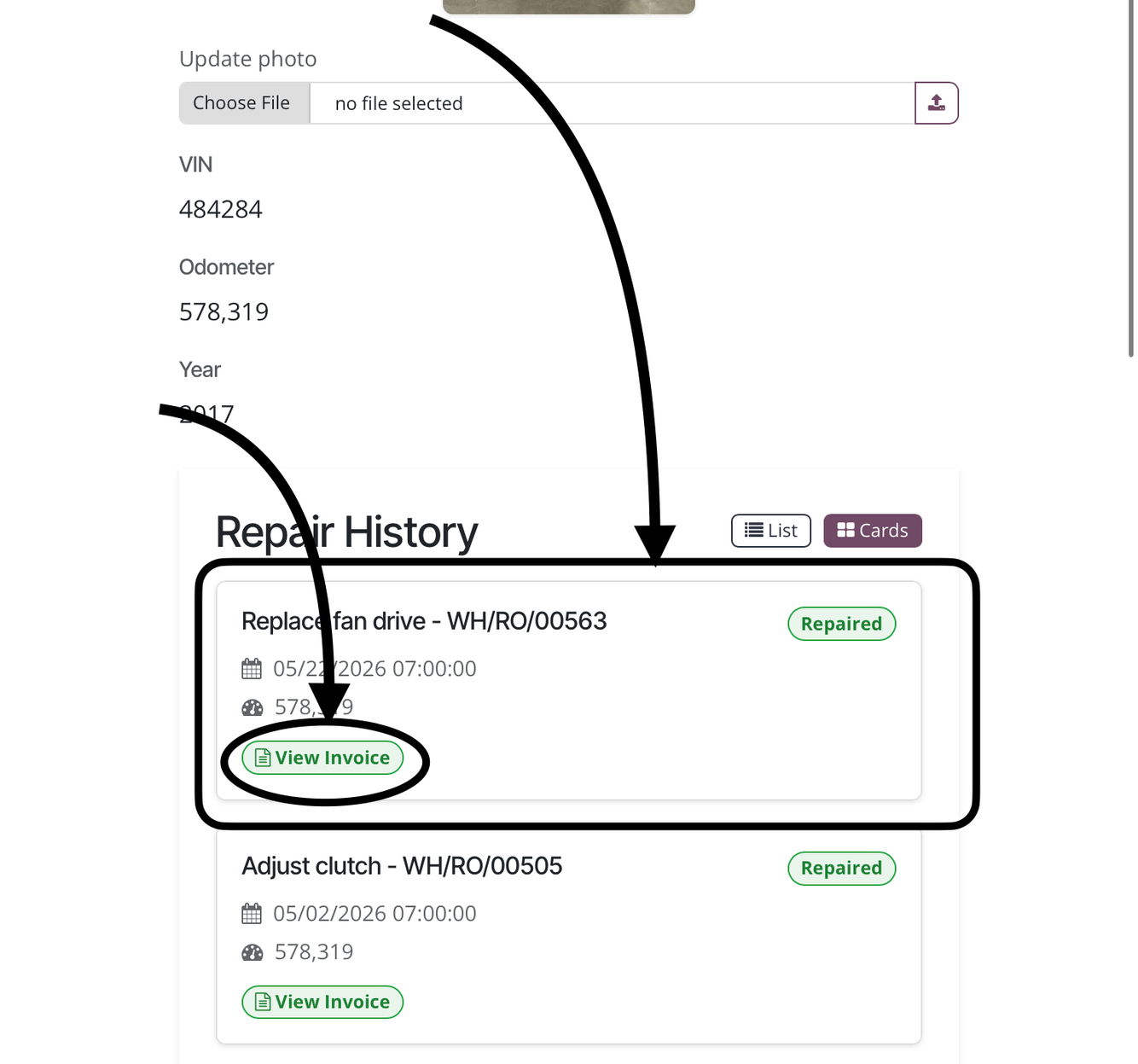
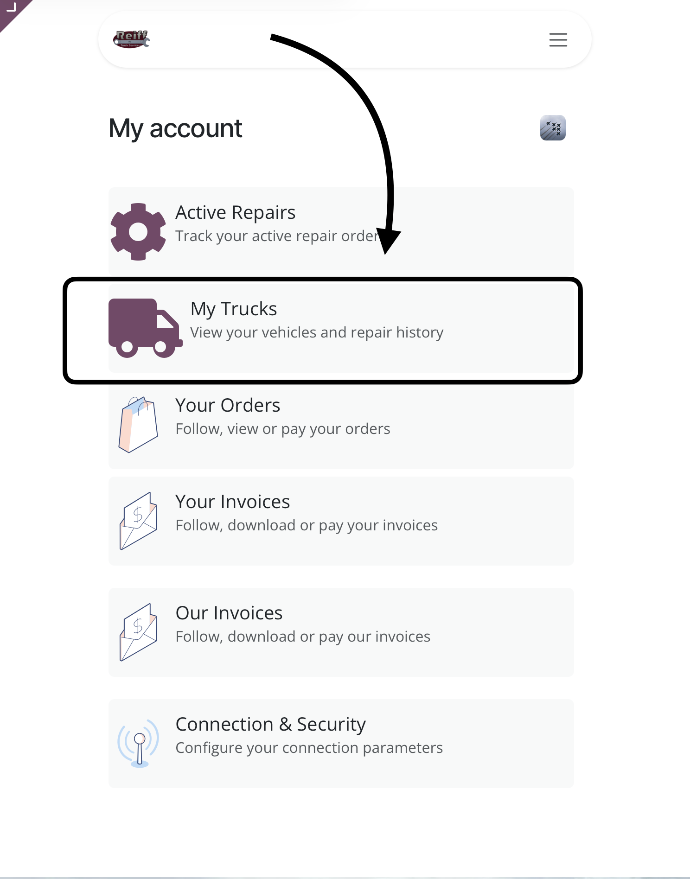
You can also view any of your trucks we've serviced and see each repair we've performed, with each repair linked directly to its invoice. First select "My Trucks" from the portal dashboard.
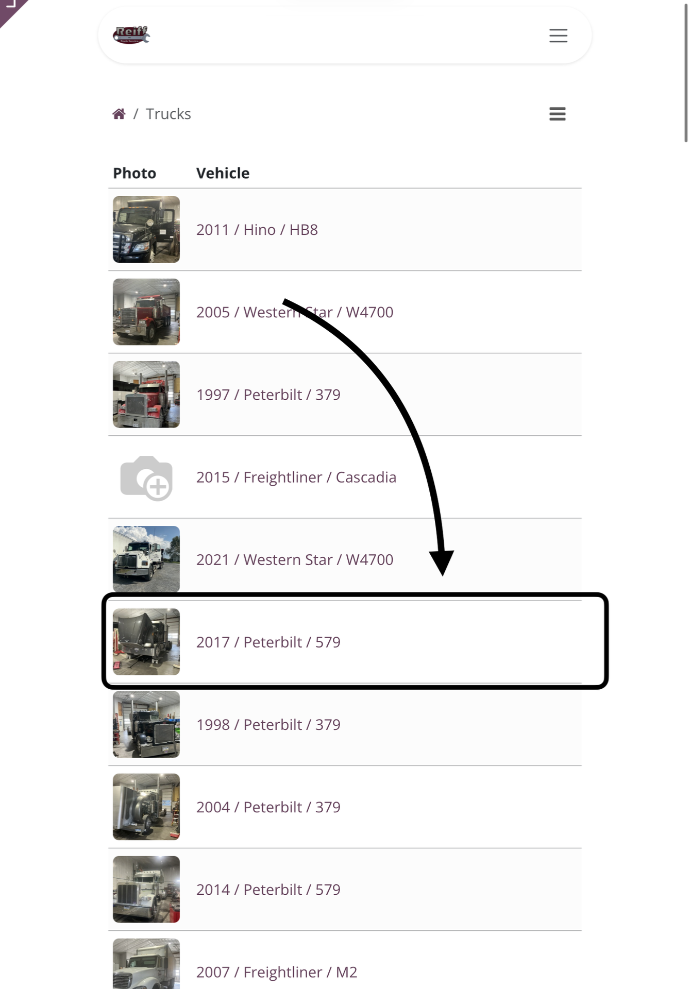
Then select the truck you want to view.
Here you can see the mileage from its last service, and if you'd like, you can update the truck's photo right here too.
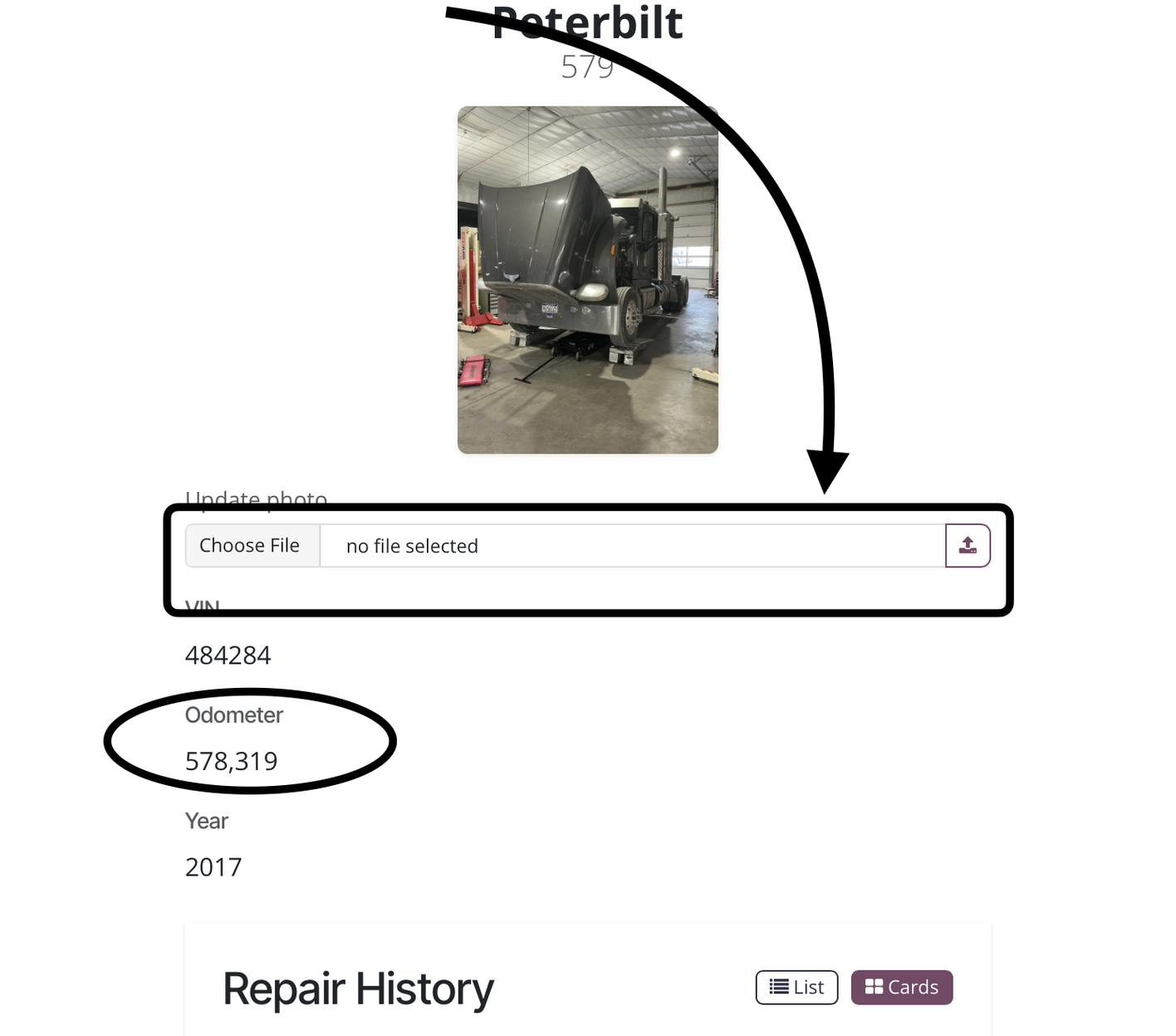
Each repair has the invoice linked to it. If you have any questions, feel free to call us!